
ESP32 Arduino IDE Setup: Install, Connect & Program ESP32 Boards
Complete guide to install ESP32 in Arduino IDE. Learn how to add ESP32 board manager, connect your ESP32 DevKit/WROOM to Arduino IDE, and upload your first program. Works with ESP32-C3, S3, WROOM-32, and all variants.
How to Install ESP32 in Arduino IDE
Learn how to add ESP32 board support to Arduino IDE and connect your ESP32 development board (ESP32 DevKit V1, WROOM-32, ESP32-C3, ESP32-S3, or any variant). This complete setup guide covers installing ESP32 board manager, connecting your board, selecting the correct port, and uploading your first program.
📚 What You'll Learn
🔗 Quick Copy: ESP32 Board Manager URL
Need the ESP32 board manager URL? Copy this official Espressif link for Arduino IDE:
https://espressif.github.io/arduino-esp32/package_esp32_dev_index.json When do you need this? Only if ESP32 doesn't show up in Boards Manager (see Method 2 in Step 2 below)
Prerequisites #
Before we begin, make sure you have:
🔌 Hardware
- ✓ Any ESP32 Development Board:
- • ESP32 WROOM-32 / WROOM-32D / WROOM-32E / WROOM-32U
• ESP32 DevKit V1 / DevKit V4 / DevKitC
• ESP32-C3 Super Mini / ESP32-C3 Zero
• ESP32-S3 Super Mini / ESP32-S3 WROOM-1
• ESP32-CAM / NodeMCU-32S / Firebeetle ESP32
• View all 268 ESP32 boards → - ✓ USB Data Cable (Micro-USB or USB-C depending on your board)
💻 Software
- ✓ Computer running Windows, macOS, or Linux
- ✓ Internet connection for downloading Arduino IDE and ESP32 board manager
- ✓ USB Drivers (usually auto-installed, but may need CP210x or CH340 drivers on some systems)
⚠️ Do I need to install ESP32 drivers for Arduino IDE?
Most modern operating systems automatically install USB drivers when you connect your ESP32. However, if your ESP32 doesn't show up as a COM port, you may need to manually install CP210x (Silicon Labs) or CH340 USB-to-serial drivers depending on your board's chip.
Step 1: Install Arduino IDE 2.0 #
📥 What we'll do: Download and install Arduino IDE, a versatile and user-friendly platform for programming ESP32 boards.
Download Arduino IDE #
Visit the Arduino Official Website to download the latest version.

Installation by Operating System #
🪟 Windows Installation
- Download the Windows installer (.exe) from the website
- Run the installer
- Follow the on-screen instructions
- Launch Arduino IDE from your Start menu
🍎 macOS Installation
Option 1: Using Homebrew (Recommended)
brew install --cask arduino-ideOption 2: Manual Installation
- Download the macOS .dmg file
- Open the .dmg and drag Arduino IDE to Applications
- Launch from Applications folder
🐧 Linux Installation
Ubuntu/Debian:
sudo apt update
sudo apt install arduino
For other distributions, use your package manager or download from the official website.
First Launch #
Once installed, launch Arduino IDE. You should see a clean, beginner-friendly interface:
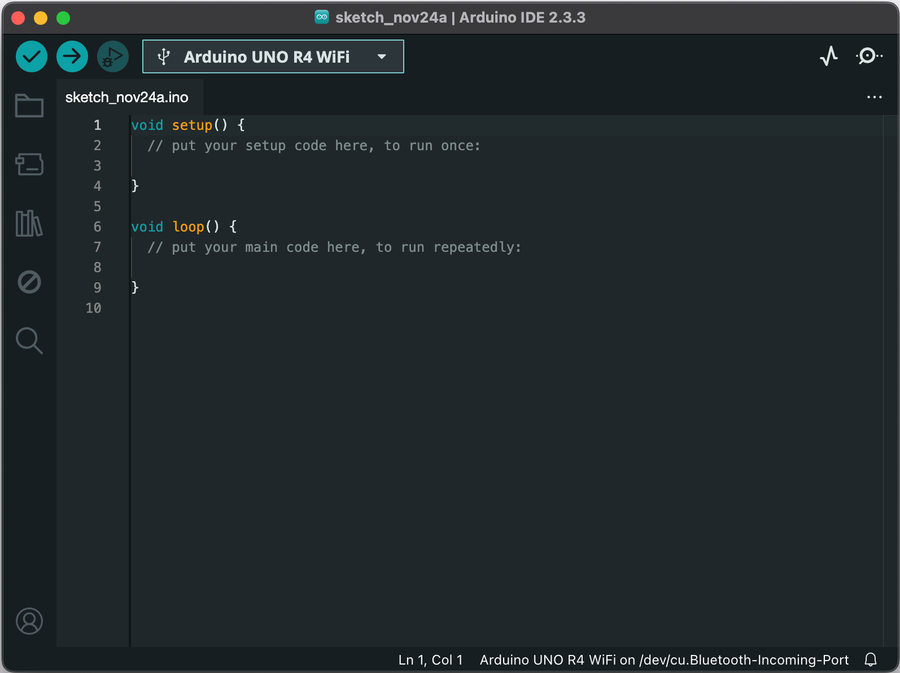
✅ Step 1 Complete! Arduino IDE is now installed and ready.
Step 2: Add ESP32 to Arduino IDE (Install Board Manager) #
🔧 What we'll do: Install ESP32 board support in Arduino IDE by adding the ESP32 board manager package. This enables Arduino IDE to program ESP32 DevKit V1, ESP32 WROOM-32, ESP32-C3, ESP32-S3, and all other ESP32 variants.
Method 1: Quick Installation (Recommended) #

- 1 Click the Boards Manager icon on the left sidebar
- 2 In the search box, type
esp32 - 3 Find "esp32 by Espressif Systems" and click Install
- 4 Wait for the installation to complete (this may take a few minutes)
Method 2: Manual URL Configuration #
⚠️ Can't find ESP32 boards? Click here for manual setup
If ESP32 doesn't appear in Boards Manager, add it manually:
- Go to File → Preferences
- Find the "Additional Board Manager URLs" field
- Paste this URL:
https://espressif.github.io/arduino-esp32/package_esp32_dev_index.json - Click OK
- Return to Boards Manager and search for "esp32"
- Install "esp32 by Espressif Systems"
Verify Installation #
To confirm ESP32 boards are installed:

- Go to Tools → Board
- You should see a wide range of ESP32 boards available
- Options include: ESP32 WROOM-32, ESP32 DevKit V1, ESP32-C3, ESP32-S3, and more
✅ Step 2 Complete! ESP32 boards are now available in Arduino IDE.
Step 3: Connect ESP32 to Arduino IDE and Upload First Program #
💡 What we'll do: Connect your ESP32 board to your computer, select the correct board and COM port in Arduino IDE, and upload a simple LED blink program to test the setup.
How to Connect ESP32 to Arduino IDE #
1. Connect USB Cable
Plug your ESP32 DevKit, WROOM-32, or other ESP32 board into your computer using a USB data cable (not just a charging cable)
2. Select ESP32 Board
Go to Tools → Board → esp32 and choose your specific board (ESP32 Dev Module, ESP32 WROOM, ESP32-C3, etc.)
3. Select COM Port
Go to Tools → Port and select the COM port where your ESP32 is connected (usually COM3-COM10 on Windows, /dev/ttyUSB0 on Linux, /dev/cu.usbserial on macOS)
⚠️ Which ESP32 Board to Select in Arduino IDE:
- ESP32 DevKit V1 → Select "ESP32 Dev Module"
- ESP32 WROOM-32 / WROOM-32D / WROOM-32E / WROOM-32U → Select "ESP32 Dev Module" or "ESP32 WROOM DA Module"
- ESP32-C3 Super Mini → Select "ESP32C3 Dev Module"
- ESP32-S3 / S3 WROOM-1 → Select "ESP32S3 Dev Module"
- ESP32-CAM → Select "AI Thinker ESP32-CAM"
- NodeMCU-32S → Select "NodeMCU-32S"
- Firebeetle ESP32 / ESP32-E → Select "FireBeetle-ESP32"
💡 Not sure? "ESP32 Dev Module" works for most ESP32 boards. Check our ESP32 boards database for your specific model.
The Blink Program #
Here's a simple program to blink the built-in LED. We're using the DFRobot Firebeetle ESP32-C3 as an example:
// ESP32 Blink Program
int ledPin = 10; // Default In-Built LED pin for DFRobot Firebeetle ESP32-C3

void setup() {
  pinMode(ledPin, OUTPUT); // Set the LED pin as an output
}

void loop() {
  digitalWrite(ledPin, HIGH); // Turn the LED on
  delay(1000);               // Wait for 1 second
  digitalWrite(ledPin, LOW); // Turn the LED off
  delay(1000);               // Wait for 1 second
}
⚠️ Important: The built-in LED pin varies by board. This example uses GPIO10. Check your specific board in our ESP32 Boards database to find the correct pin.
Upload to Your ESP32 #
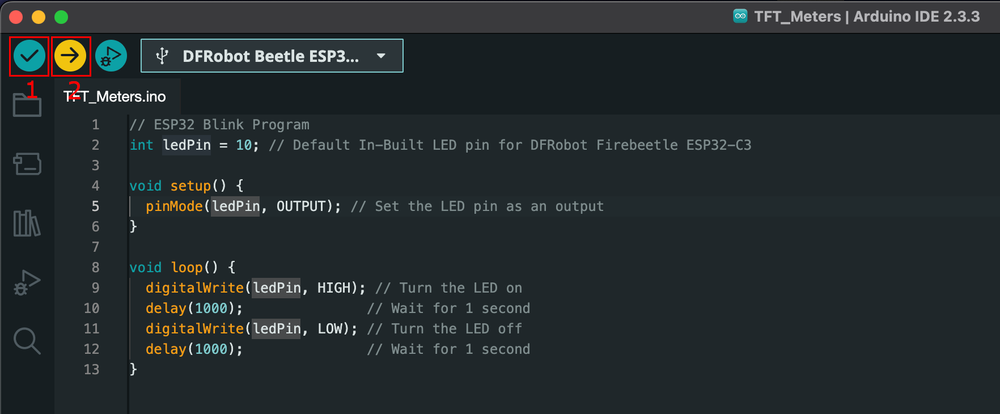
Upload Steps:
- 1Verify/Compile: Click the checkmark ✓ button (or Sketch → Verify/Compile)✓ Compilation successful!Sketch uses 244530 bytes (18%) of program storage space.
- 2Upload: Click the right arrow → button to flash the code to your ESP32Wait for "Done uploading" message
- 3 Test: Watch your ESP32's built-in LED blink on and off every second! 🎉
✅ Step 3 Complete! Your ESP32 is now programmed and running your code.
Troubleshooting Common Issues #
❌ Error: "No serial data received"
This error indicates a serial communication issue. Try these solutions:
Solution 1: Lower the Baud Rate
- Go to Tools → Upload Speed
- Select a lower value (e.g.,
115200) - Try uploading again
Solution 2: Enable Boot Mode
- Connect GPIO0 to GND on your ESP32
- Press the RESET button (or reconnect power)
- Upload your sketch
- Learn more: ESP32 Boot Parameters Guide
Solution 3: Check Your Setup
- Verify the USB cable is a data cable (not just charging) → See USB cable guide
- Try a different USB port
- Ensure correct board and port are selected
- Check if drivers are installed (especially on Windows) → Driver installation guide
- Check USB power with a multimeter — cheap cables often sag below 4.8 V under load
Still having issues? See our complete guide: Fix ESP32 Upload Timeout Errors →
⚠️ Port Not Showing in Arduino IDE
Windows: Install CP210x or CH340 USB drivers → Driver installation guide
macOS: Check System Preferences → Security for blocked drivers
Linux: Add your user to the dialout group:
sudo usermod -a -G dialout $USERComplete troubleshooting: Fix ESP32 Port Not Detected →
🔄 Code Compiles But Nothing Happens
- Double-check the LED pin number matches your board (check our board database for pinouts)
- Try pressing the RESET button on your ESP32
- Open Serial Monitor (Tools → Serial Monitor) to check for error messages → Serial Monitor troubleshooting
- Verify your board is receiving power (check power LED)
Upload successful but not running? Fix ESP32 Upload Success But Code Not Running →
Managing ESP32 Board Versions #
💡 Why this matters: Sometimes you need to change ESP32 board package versions to resolve compatibility issues, access new features, or maintain project stability.
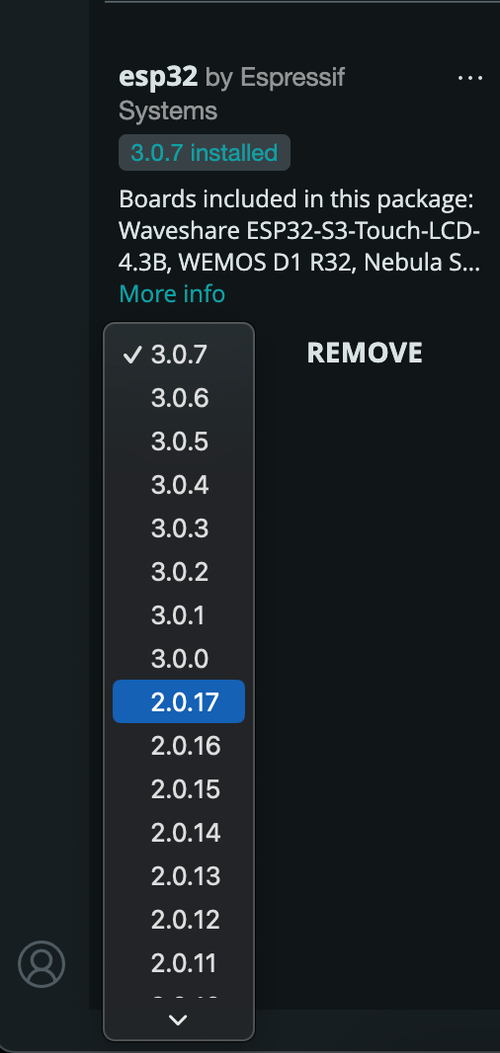
How to Change Versions:
- 1 Open Tools → Board → Boards Manager
- 2 Search for "esp32"
- 3 Find "esp32 by Espressif Systems" - you'll see the currently installed version
- 4 Click the dropdown menu next to the version number
- 5 Select your desired version and click Install
✨ Latest Version
New features and improvements
🔒 Stable Version
Tested and reliable for production
🕐 Older Version
For legacy project compatibility
Next Steps & Additional Resources #
🎉 Congratulations!
You've successfully set up your ESP32 in Arduino IDE and uploaded your first program. You're now ready to explore the exciting world of ESP32 development!
🚀 Try Other Platforms
📖 Explore More
💡 Pro Tip: When experimenting with Wi-Fi features, sensors, or advanced projects, Arduino IDE makes it easy to get started. Don't forget you can switch ESP32 board versions anytime to match your project's needs!
Frequently Asked Questions #
Can I use Arduino IDE for ESP32?
Yes! Arduino IDE fully supports ESP32 boards. You just need to install the ESP32 board package using the Boards Manager. Arduino IDE works with all ESP32 variants including ESP32 WROOM-32, DevKit V1, ESP32-C3, ESP32-S3, and more.
What is the ESP32 board manager URL for Arduino IDE?
The official ESP32 board manager URL is:
https://espressif.github.io/arduino-esp32/package_esp32_dev_index.jsonAdd this URL in File → Preferences → Additional Board Manager URLs if ESP32 doesn't appear in your Boards Manager.
Which board should I select for ESP32 DevKit V1 in Arduino IDE?
For ESP32 DevKit V1, select "ESP32 Dev Module" from Tools → Board → esp32. This is the most compatible option for most ESP32 development boards including WROOM-32 variants.
Why is my ESP32 not showing up in Arduino IDE?
Common causes:
- USB cable is charging-only - Use a data-capable USB cable
- Missing drivers - Install CP210x or CH340 USB drivers
- Wrong port selected - Check Tools → Port for available COM ports
- USB port issue - Try a different USB port on your computer
Is ESP32 compatible with Arduino code?
Yes! ESP32 is compatible with most Arduino code and libraries. The ESP32 Arduino core provides Arduino-compatible APIs, so you can use familiar Arduino functions like digitalWrite(), analogRead(), Serial.print(), and most Arduino libraries work with minimal or no modifications.
How do I install ESP32 board in Arduino IDE 2.0?
In Arduino IDE 2.0: Click the Boards Manager icon on the left sidebar → Search for "esp32" → Find "esp32 by Espressif Systems" → Click Install. The process is the same as Arduino IDE 1.x but with a modernized interface.